Let the tool hear a song and it estimates the chords, key and BPM, then makes a guitar chord sheet and TAB. A synthesized guitar plays the TAB over the original song, so you can check it by ear and practise along.
All audio is processed inside your browser and never sent anywhere. No sign-up is needed.
Loading a song
There are three ways to load a song. If you have the audio file, opening it is the most accurate. Every way works for songs up to 10 minutes long.
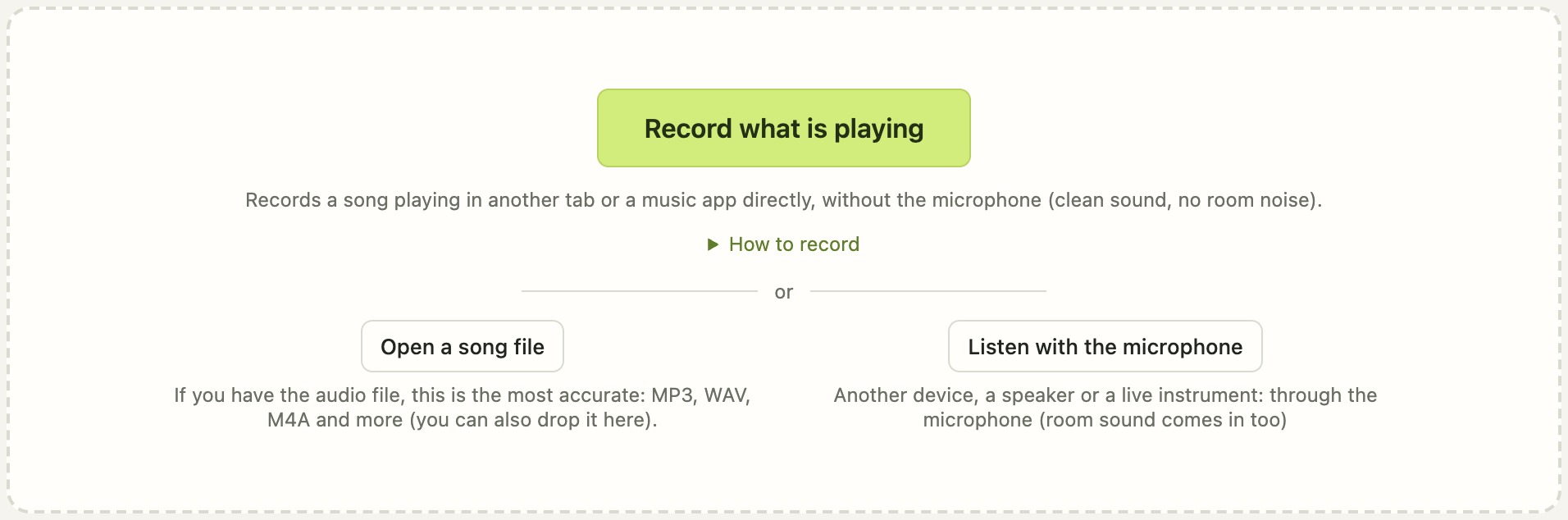
Open a song file
Open an audio file such as MP3, WAV or M4A. On a computer you can also drag the file onto the page. Songs in music apps and streaming services can’t be opened as files; use one of the two ways below instead.
Record what is playing (Chrome and Edge on a computer)
Records a song playing in another tab or in a music app directly, without the microphone. No room noise gets in, so the sound is cleaner than with a microphone.
- If the song plays in the browser, pick that tab in the sharing dialog and turn on “Also share tab audio”.
- If it plays in a music app, pick “Entire screen” and turn on “Also share system audio”.
- To keep the shared tab silent while recording, tick “Mute the shared tab while recording”.
Please stay within your streaming service’s terms of use. Copy-protected audio can’t be recorded (the recording comes out silent), and this tool does not bypass copy protection.
Listen with the microphone
Works for a song playing anywhere: another device, a speaker, a live instrument. On a phone, play the song on another device, such as a computer, and let the phone’s microphone listen. Room sound is recorded too, so a quiet room and a fairly loud volume work best. The microphone can’t hear audio playing through earphones.
When the recording is done, choose the range to analyse and press “Analyze this range”. Ten seconds is enough to analyse, but recording the whole song makes the key and tempo estimates steadier. Recording stops on its own after 10 minutes.
While recording, you can play a quiz guessing the chord shapes on screen, and while the first pass runs, a little ear-training game. Recording and analysis carry on whether you play or not.
First pass and detailed analysis
The analysis runs in two steps.
The first pass listens to the song as it is and estimates the beats, bars and chords. How long it takes depends on the song and your computer; for a 4–5 minute song, roughly ten seconds to a minute.
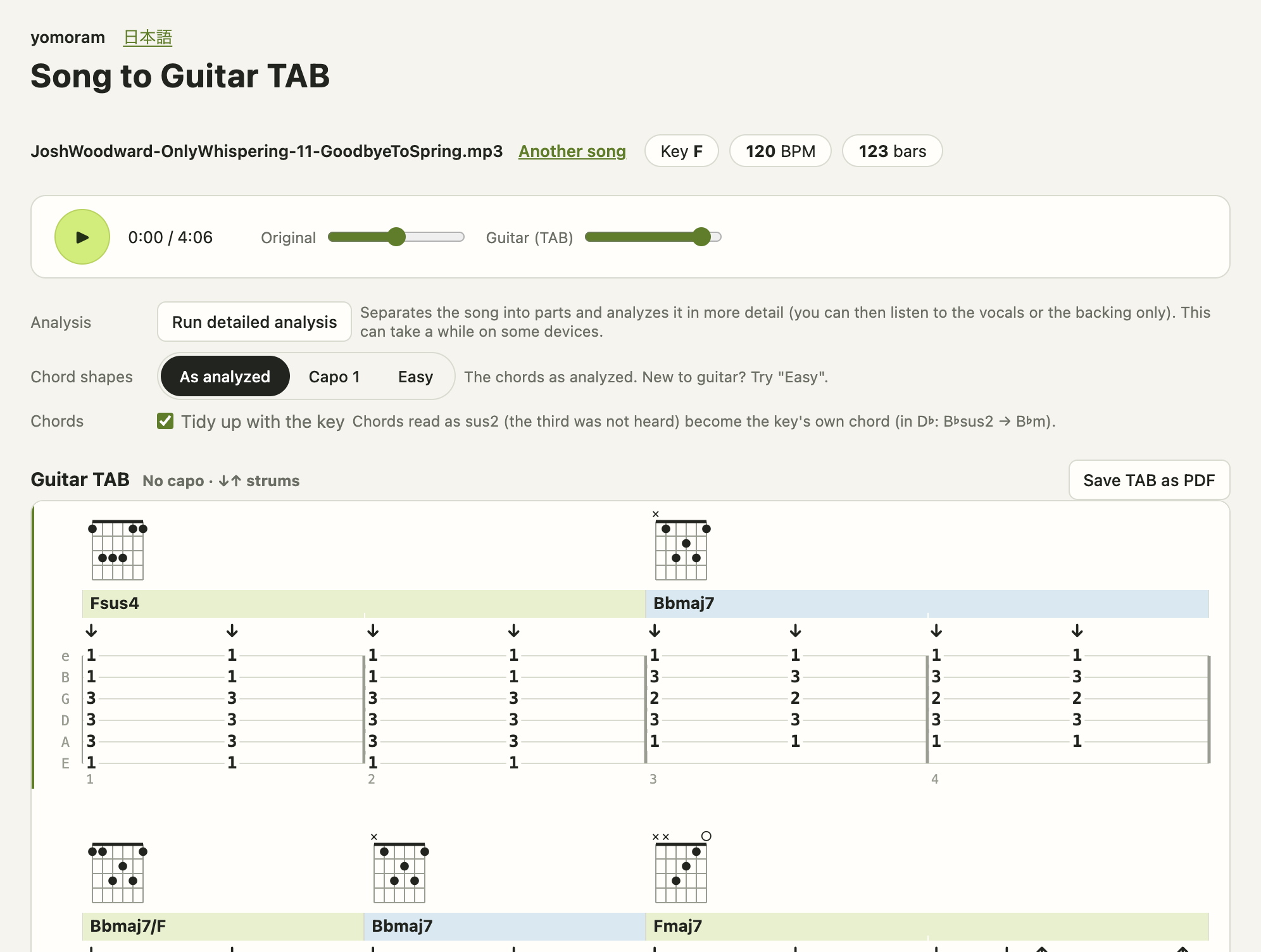
The detailed analysis (computers only) first separates the song into vocals, drums, bass and other instruments, then estimates the chords and the strum timing again. The sung melody pulls the chords off less, so sung passages often come out more accurate, though a little of the voice can remain in the separated backing. The first time, the model (about 70 MB) is downloaded. A 4–5 minute song can take a few minutes.
- The detailed analysis works outward from where you are playing. Tap a bar in the TAB to play from there and have that area analysed first.
- Faded bars still show the first-pass chords.
- Bars that changed from the first pass get a red dot.
- You can switch between “First pass” and “Detailed”. The TAB, the guitar playback and the PDF follow your choice.
- Keep the page open while it analyses.
Choosing chord shapes
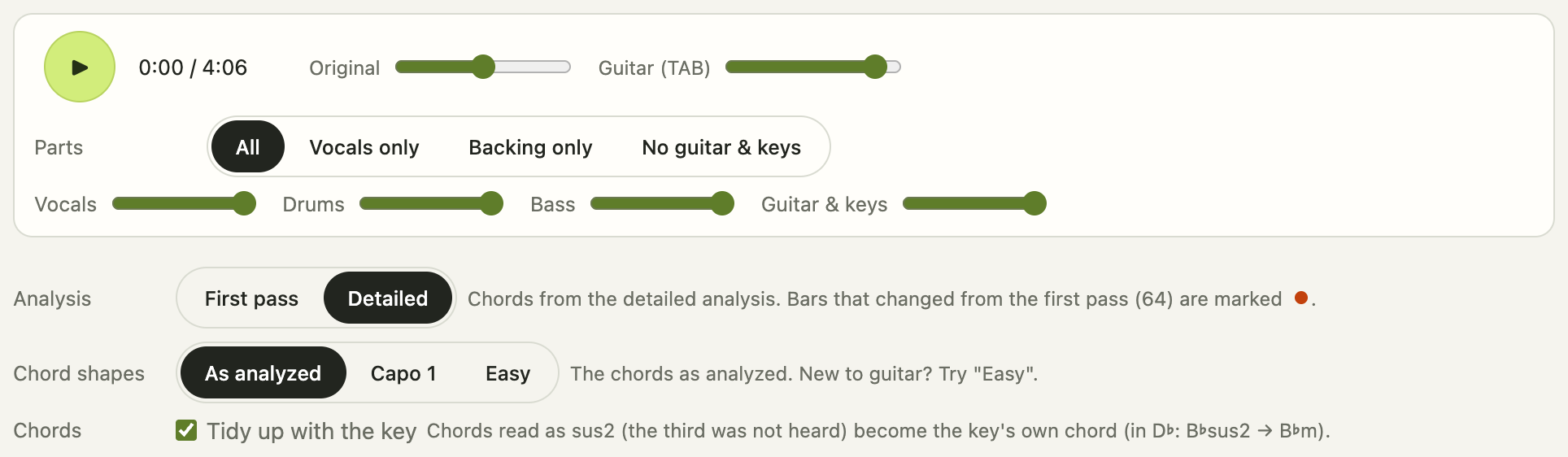
Played as analysed, a song may have lots of sevenths, slash chords and barre chords. “Chord shapes” offers easier ways to play it.
As analyzed: the chords exactly as estimated.
Easy: only major and minor chords, mostly open chords within the first 5 frets. Sevenths, sus chords, slash chords and the like become their plain major or minor chord, so it sounds simpler than the original. For a song you are playing for the first time, start here. The capo position is chosen for you.
Capo N: shown when a capo makes the song easier to play. The sound stays the same, in easier shapes. TAB numbers are frets counted from the capo.
Playing along with the song
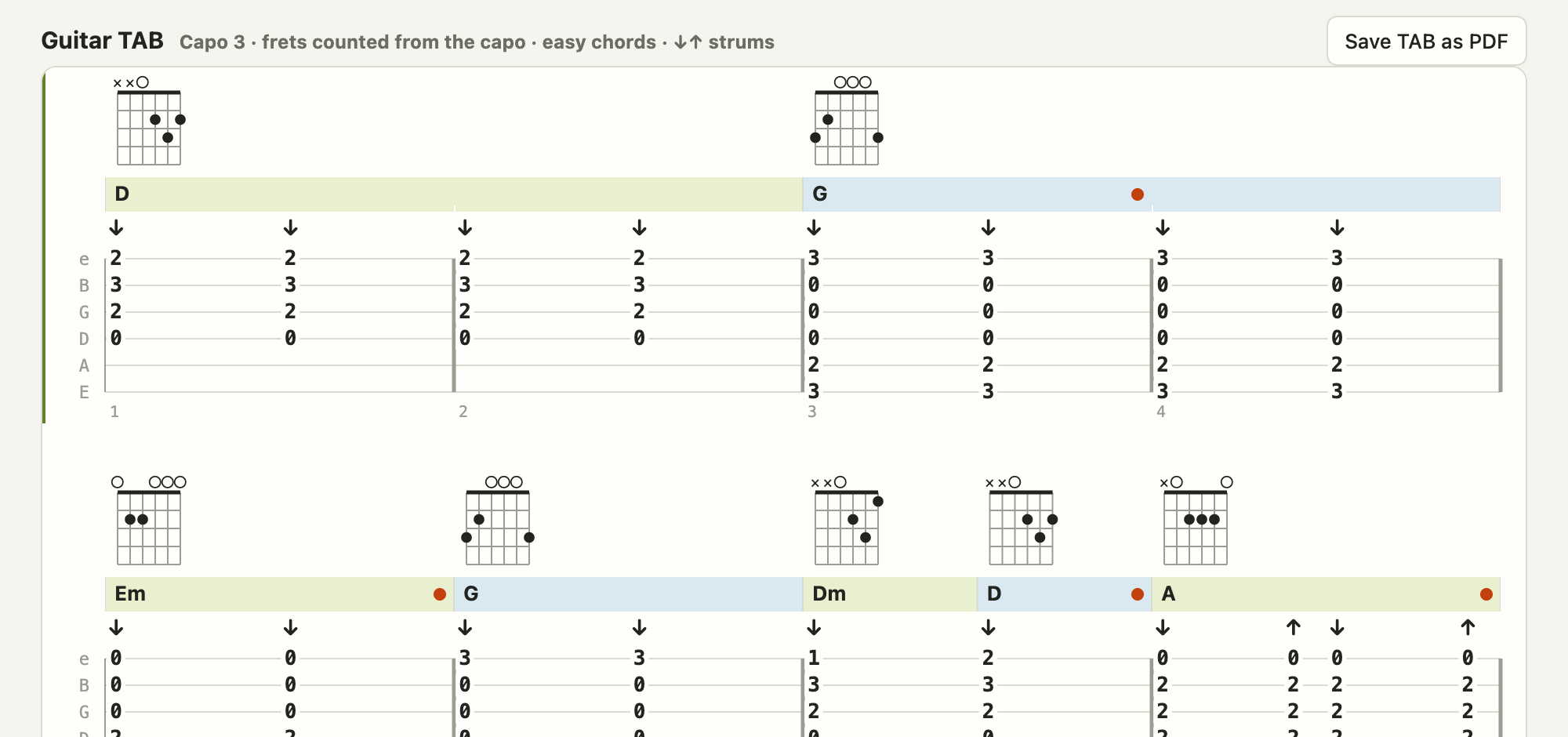
Press play and a synthesized guitar strums the TAB on top of the original song. “Original” and “Guitar (TAB)” have their own volume sliders; turn the original down and play your own guitar over it.
After the detailed analysis, “Parts” lets you choose “All”, “Vocals only”, “Backing only” or “No guitar & keys”.
- “No guitar & keys” lets you play the guitar part yourself in place of the original’s.
- “Backing only” turns the voice down so the chords are easier to hear.
If the guitar sounds out of step with the song, open “Guitar out of sync with the song? (bar lines)”.

- Usually “Follow the tempo” is right.
- When opened, it shows how closely the song sits on a steady tempo. For a song that seems recorded to a click track, if the guitar rushes or drags, try “Steady tempo”.
- “Compare with the steady beat” under “Chords” shows how the chords change with the other way of tracking the beat.
Saving
- Save TAB as PDF: print it and put it on your music stand.
- Save as text: the chord progression as plain text, for notes or for pasting into other apps.
An example session (Goodbye To Spring)
These are the steps tried with “Goodbye To Spring” by Josh Woodward, a song free to use under Creative Commons. You can download it from his site.
- Open the downloaded MP3 with “Open a song file”. The tool showed key F and 120 BPM. (Josh Woodward’s own chart is in B♭: the key estimate can pick a neighbouring key. The chords are read separately, bar by bar.)
- Choose “Easy” under “Chord shapes” to get the flow of the chords first. For this song it gave capo 3 with D-shape chords.
- Press “Run detailed analysis”. When it finishes, set “Parts” to “No guitar & keys” and play along with the TAB.
- Where something doesn’t sound right, listen again with “Backing only” and check by ear.
- Once you can play it, keep it with “Save TAB as PDF”.
How the tool’s chords for this song compare with the composer’s own chart is shown on the song-analysis page.
What works well, and what doesn’t
The chord estimates can contain mistakes; in the end, trust your ears. From using it so far:
Songs that come out well
- Songs where the band, guitar or piano backing is clearly audible
- Songs with a mostly steady tempo
- Pop and rock songs where a chord lasts a while
Songs and passages that often go wrong
- Quick runs of passing chords or inversions (chords with a moving bass), common in intros
- Passages that are mostly voice with little backing
- Songs in 3/4 or 6/8, or that change time signature (the tool divides bars as 4/4, so the bars shift)
- Songs whose tempo moves a lot
- Microphone recordings in noisy places
- The key shown can be a neighbouring key (one sharp or flat away) of the real one
If an estimate seems off, switch to the detailed analysis, or listen to the backing only under “Parts”: it makes the right chord easier to find.
Troubleshooting
“The microphone heard almost nothing”
Play the song through a speaker, a little louder. The microphone can’t hear earphones.
“Record what is playing” comes out silent
Check that “Also share tab audio” (for a tab) or “Also share system audio” (for the entire screen) is on in the sharing dialog. Some streaming services protect their audio, and it can’t be recorded.
“The recording is too short”
Play at least 10 seconds of the song before stopping.
“The analysis stopped”
Memory may have run short. Close other tabs and open the song again.
FAQ
Is my song or recording sent anywhere?
No. Loading, recording, analysis and source separation all happen on this page. Recordings are not saved either.
Does it work on a phone?
Yes. On a phone you can open a file or listen with the microphone. The detailed analysis needs more memory than phones have, so for now it runs on computers only.
Can I save the separated vocals or backing as files?
No. The separated audio is only used for listening inside the tool and for reading the chords again. What you can save is the TAB as a PDF and the chords as text.
Can I publish the TABs and chord sheets I make?
For your own songs, freely. Publishing or sharing TABs or chord sheets of other people’s songs online may need permission from the rights holders. Please keep it to your own practice.
How does it work, and how accurate is it?
The song-analysis page shows the tool’s first pass and detailed analysis on two Josh Woodward songs, compared with his own chord charts, and explains how each step works.
The screenshots use “Goodbye To Spring” by Josh Woodward (joshwoodward.com), licensed under CC BY 4.0.